A free way to make a DIY phone brick


Over the last year or so, I’ve seen a lot of buzz about Brick.
If you’re not familiar with Brick, it’s a small plastic device that you can mount on your refrigerator or somewhere else in your home, and when you put your phone near it, it blocks the apps you’ve chosen to turn off (usually distracting apps like Instagram or TikTok).
So, to unlock them, you have to physically touch your phone against the Brick device.
People love it because — unlike screen time features that you can ignore the moment you decide “actually, yes, I want to spend three more hours scrolling doom” — you have to physically unlock your phone.
I’ve heard from so many people that the Brick is changing their lives and seems to have given them hours of their day back.
As someone who always works to control my screen time, I was definitely interested in trying out a Brick device, but I wasn’t thrilled with the idea of spending $59 on it (many people recommend Bloom as a cheaper alternative that costs $39 instead and essentially does the exact same thing).
And then when I mentioned my interest in the Brick on Instagram, I got tons of messages from people saying you could do it yourself with a free app and a personalized Yoto card or an old hotel key card or even a barcode from an old cereal box or other packaging!
Well you know I had to try it and I was absolutely amazed at how easy it is to set up.
I’ve been using it this month and it really is as amazing as everyone says. That physical need to unlock it makes all the difference!
If you want to buy a Brick or Bloom device, go ahead. But if you want basically all the same features for zero or close to zero dollars, this is a great alternative.
Here’s how to set it up (and then I’ll answer a bunch of questions I’ve received about this app lock system down below!):
First, download the Foqos app. It’s free and doesn’t collect your data, which I love. Please note that this app is only for Apple devices but I have heard from many Android users that the Switchly app does the same thing!
Once you download the app, you will set up a profile. Give it a name and choose which apps you want to block (you can have multiple profiles if you want for different scenarios: for example, you might want to block certain apps when you go to the gym and different apps when you’re at home on the couch).
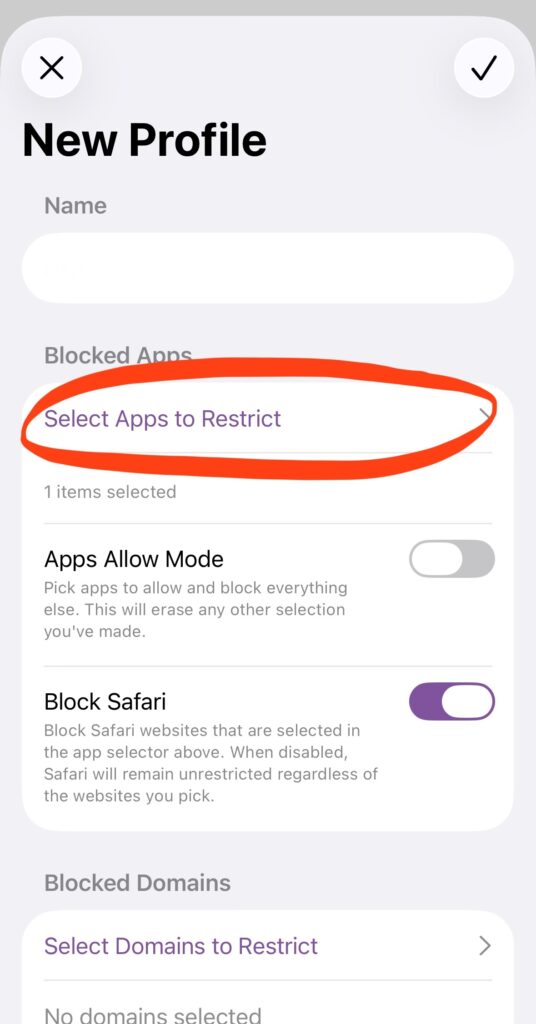
I personally only have one profile and it’s set to block social media apps (Instagram and TikTok) but you can do whatever you want and you can change it as needed once you’ve used it more.
Then you will choose what your blocking strategy will be. I chose NFC + Manual, which means I can turn on lock mode from my phone (easy!) but to unlock social media apps I have to physically unlock them with an NFC-tagged device.
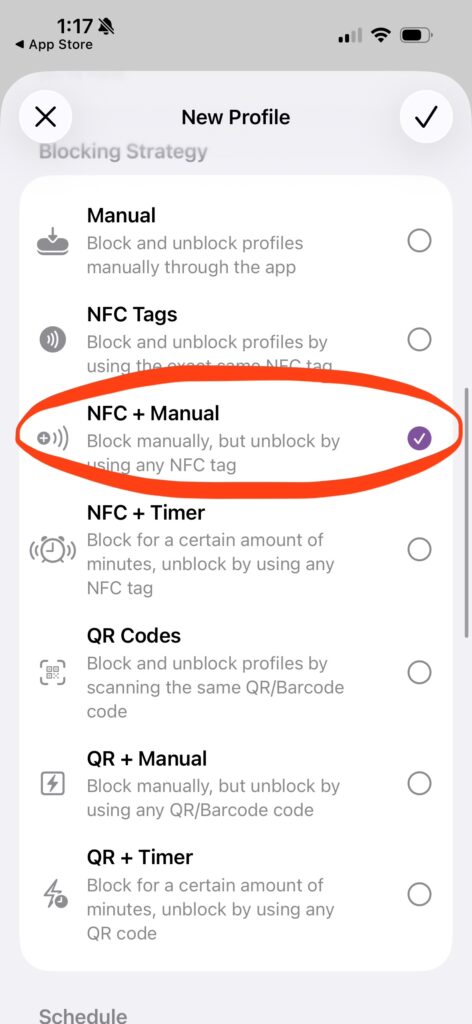
An NFC tagged device can be a Make Your Own Yoto card (which is what I used because I had them on hand), an AirTag, an old hotel key card, or a cheap NFC tag from Amazon.
You can also choose to create a QR code/barcode and I have heard from many people who have printed a QR code or simply cut a barcode from an old cereal box or other item that has a barcode.
Scroll down and under “Complex Unlocks” press the “+ Set” button under the NFC or QR/barcode tag and now ONLY the barcode or NFC tag you scan at this point will work to unlock your phone (otherwise you could scan ANY barcode or NFC tag to unlock your device, which is also an option if you want).
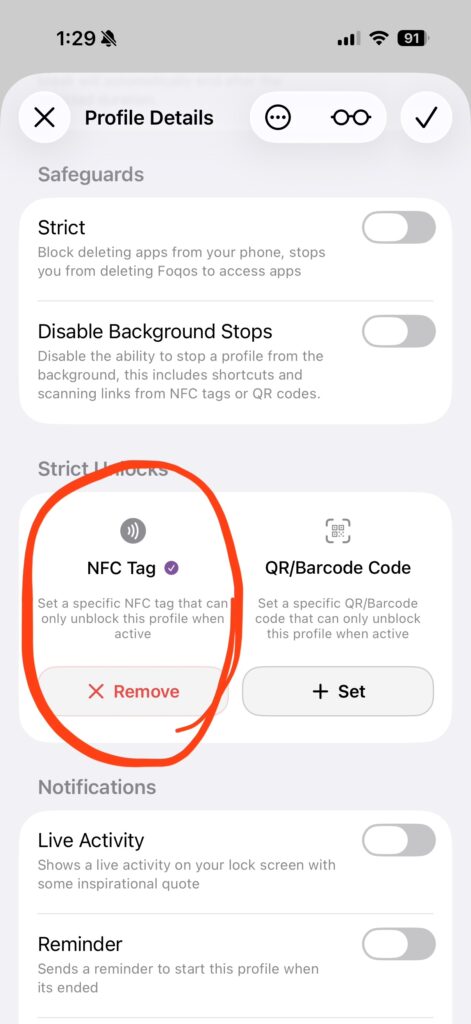
Once I set up my Make Your Own Yoto card as an NFC tag, I taped it to the wall in my basement laundry room (I wanted it to be inconvenient enough to help me change my habits – having it in my office or bedroom would have been WAY too easy for me to unlock).
Now, when you are ready to block those apps, open the Foqos app, press “Hold to start” and it will block those apps until you press the “Stop” button in the app and then physically hold your phone over the barcode or NFC tag.
(You can also set automatic schedules: For example, my phone automatically goes into lock mode at 8 a.m. to keep me from spending too much of the morning looking at Instagram instead of starting my workout. I can still physically go and unlock it in the basement if needed, but I don’t have to manually start the lock process every morning.)
It literally took me less than 2 minutes to set the whole thing up (writing all this down took WAY longer than actually doing it!) and I loved it.
Here are some of the questions that have come in about this free version of the Brick phone!
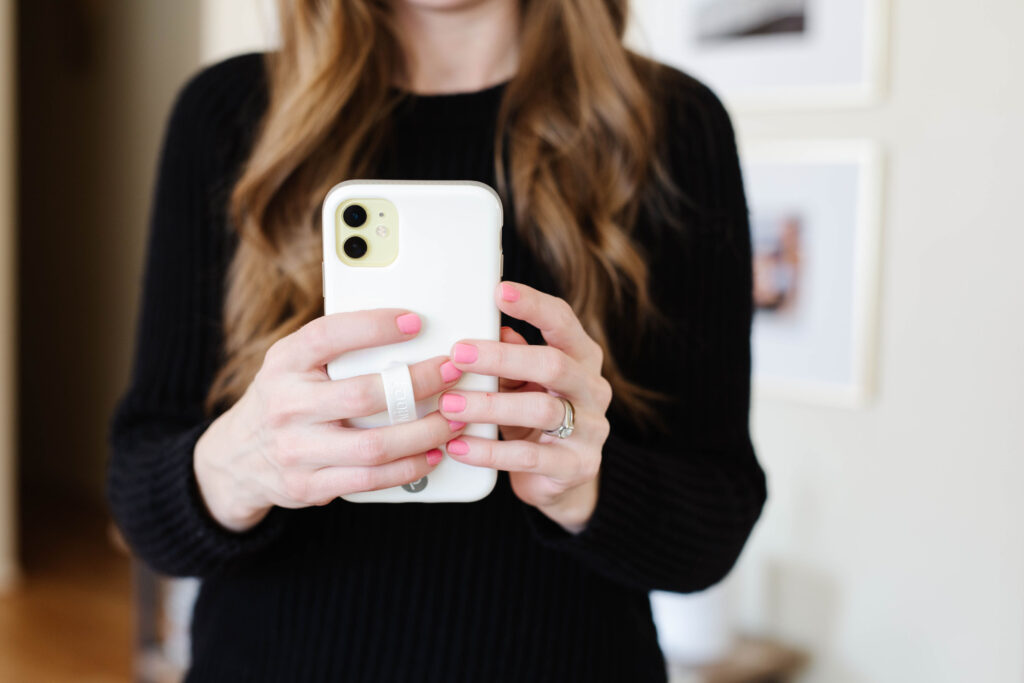
Can you still stream audiobooks or music to your phone but block other apps?
YES! Here’s why people love it: you can choose what to block! For example, if I go for a run, I still want to listen to my audiobook, use my run tracking app, and be able to call if needed. They all work because when I put the phone in Brick/Foqos mode, it only blocks social media apps (or any other app I chose to block).
Can your phone still ring/alert with Brick activated?
YES! As above, unless you have specifically blocked your phone or text apps, they will continue to function normally. Personally I’m not likely to spend 3 hours texting accidentally, so I’m not worried about crashing my messaging app or phone app.
What happens if you forget to open and leave the house?
If necessary, you can use one of your emergency unlocks, but you’re most likely just blocking time-wasting apps, not ones you’ll desperately need while you’re away from home. For example, I love to lock mine when we go out as a family so I’m not tempted to look at Instagram while we’re out. I WANT it locked while I’m out of the house with no good way to unlock it until we get home. I’m very unlikely to waste hours on my phone looking at Google Maps, so I don’t lock it when it’s in brick mode.
Can I set up different profiles for different use cases?
YES! You might have an “exercise” profile where you can use your music app, your tracking apps, your workout app, etc. But block your email, social media, YouTube, or any other app you find yourself checking when you don’t want to be. You could have another profile for “church” that blocks apps you don’t want to be tempted to use while you’re at church, but still allows you to use your scripture apps or any apps you want to access while you’re there.
Can one AirTag be used for multiple devices?
YES!
Can you do this without a Yoto card?
Absolutely! You can use a hotel key card or an AirTag or an NFC tag or any QR code or barcode!
Can you make it work with just the Yoto app if you don’t have a Yoto player?
No, because you’re not using a Yoto reader or a Yoto app – you’re using a Yoto card and it will work regardless of whether you have a Yoto reader or not! But again, you don’t need to use a Yoto card. I suggested other alternatives above: I simply used a Yoto card because I had one readily available.
What happens if you lose your card?
I would recommend putting the card somewhere you won’t lose it. This is why I attached mine to the wall instead of just placing a Yoto card on my dresser and hoping it doesn’t move. In the worst case scenario, you have some emergency unlocks that you can unlock from your phone, but they are limited and are not a long-term solution.
How do they manage to keep Foqos free?
This is a no-cost open source app and you can make a donation to support it or purchase NFC tags via their affiliate link!
Have more questions about this Brick phone hack? I’m happy to answer!
If you liked this post about a free way to make a DIY phone brick, you might also like these other posts:
Berita Terkini
Berita Terbaru
Daftar Terbaru
News
Berita Terbaru
Flash News
RuangJP
Pemilu
Berita Terkini
Prediksi Bola
Technology
Otomotif
Berita Terbaru
Teknologi
Berita terkini
Berita Pemilu
Berita Teknologi
Hiburan
master Slote
Berita Terkini
Pendidikan
Resep
Jasa Backlink
Togel Deposit Pulsa
Daftar Judi Slot Online Terpercaya
Slot yang lagi gacor
Over the last year or so, I’ve seen a lot of buzz about Brick. If you’re not familiar with Brick, it’s a small plastic device that you can mount on your refrigerator or somewhere else in your home, and when you put your phone near it, it blocks the apps you’ve chosen to turn off…